Symbols carry a child a long way, but literacy changes the game: a child who can spell, even a little, can say anything. SpeakPad builds typing in alongside the symbol boards rather than making it a separate mode.
The Type Button
The message bar can show a keyboard button labeled Type. Tapping it opens a full keyboard overlay for typing words with word prediction, and tapping again returns to the board, so a child can mix tapped symbols and typed words in the same sentence. Turn it on in Caregiver Mode under Settings → Communication with Show Keyboard Button.
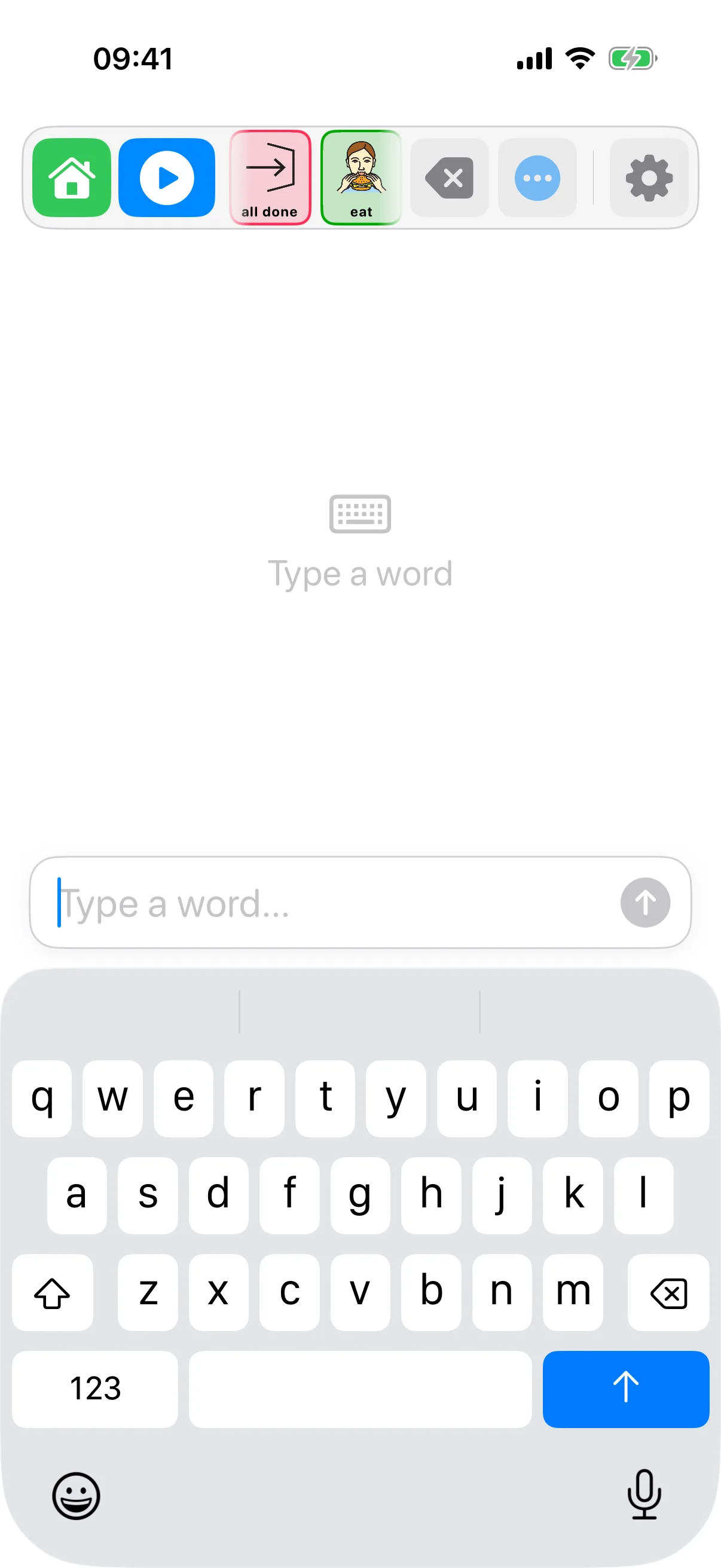
Keyboard Boards
For children who type as their main method, a whole board can be a keyboard: when creating a new board in Caregiver Mode, choose Keyboard as the board type instead of a grid or visual scene. It lives among the other boards, so typing is one tap from home rather than a different app.
How Prediction Works
Prediction learns from your child's own communication, and it all happens on the device. As they type, likely next words appear above the keyboard; there is also a Word Prediction setting that highlights likely next words on the symbol grid itself, based on their usage patterns. A child who often says want juice will find juice lit up the moment they tap want.
Symbols and Text Grow Together
Every symbol button already shows its written word, so board use is print exposure from day one. Keep the symbol boards around as typing emerges: most children mix both for years, spelling the words they know and tapping the rest. There is no cliff edge where symbols get taken away.
Who This Is For
Emerging readers practicing spelling with real payoff, literate AAC users who need words no board could predict, and children whose speech comes and goes and who want a fast way to be precise. If your child is starting to sound out words, turning on the Type button costs nothing and opens a door.
Drawing When a Word Is Missing
Yes, in SpeakPad 3.0.1 or later. Drawing is free. In Caregiver Mode, open Settings → Communication and turn on Show Draw Button. Tap Draw in the message bar to open the pad; on a portrait iPhone, look under More actions. Draw with a finger or supported Apple Pencil, change colors, erase, undo or clear. Add to Board passes through the caregiver gate, then lets you label and place the drawing as a word. The pad keeps a separate drawing for each profile and is hidden while in-app switch scanning is enabled.
New to SpeakPad?
The first-week guide covers setup, what your child sees, and how to model language from day one.
First Week Guide